Getting started4 min read
How to use Picture Parrot: explain the setup once
Turn one setup photo into clear instructions. Learn how to add useful details, share a guide with helpers, and print a handout for the day.
By Picture Parrot
You know where the flowers go. You know which box holds the candles. You also know that explaining it to every person who offers to help can become a job of its own. Picture Parrot puts that knowledge beside a photo, so someone else can pick up a task and get started.
01Start with one job someone can finish
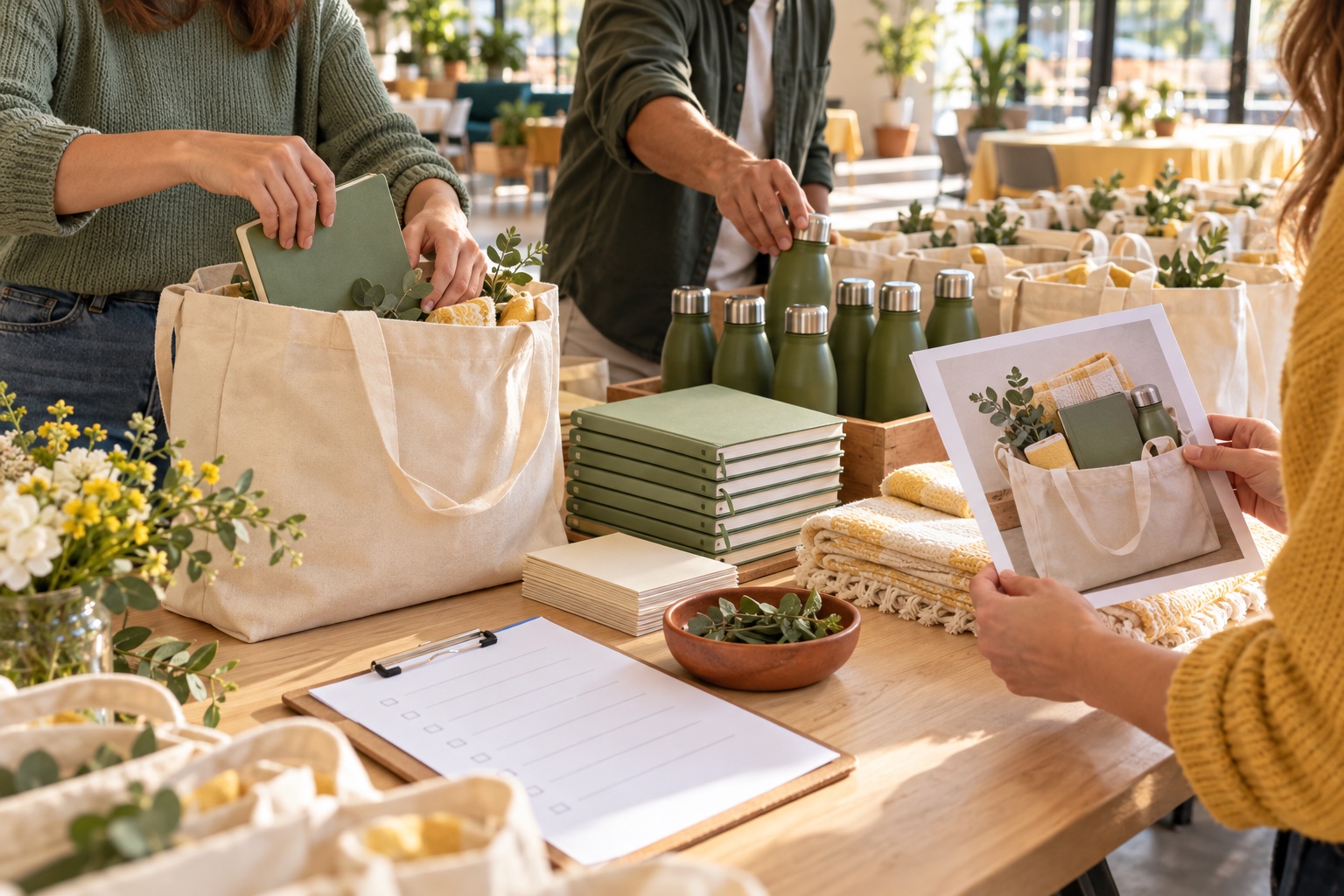
A whole wedding is a lot to explain. One centerpiece is a useful place to start. The same goes for a birthday table, a welcome bag, or a shelf of supplies. Choose a task with a clear finished result that someone can recognize.
Ask yourself: “What would I otherwise have to demonstrate twice?” That is a good first guide. Keep the budget, schedule, and guest list in the planning tools you already use. Your photo guide handles the part a helper needs to see.
02Show what finished looks like
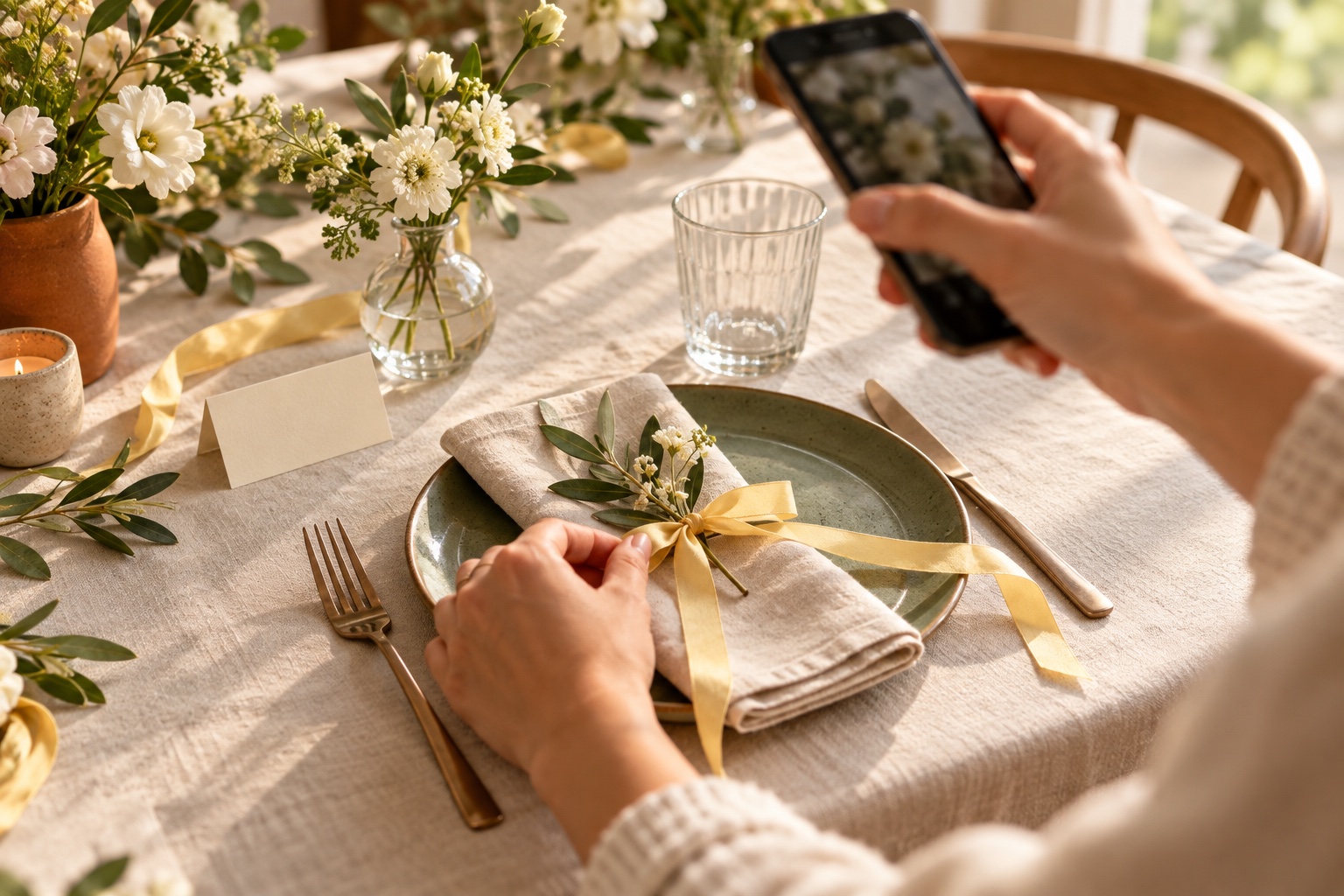
Arrange one example the way you want it, then take a clear photo. Include the whole setup and enough space around each item to tell what belongs where. A steady shot in natural light is usually more useful than a heavily styled close-up.
In Picture Parrot, choose Create a guide, add the photo, and give the guide a specific name. “Saturday reception — guest tables” tells a helper more than “Wedding stuff.” The photo becomes a shared reference when words like “over there” stop being useful.
03Pin the answers people will ask for
Click the photo to add a numbered point. Write down the action, the quantity, and where to find the supplies. Add a helper name when someone owns the job. Drag a point to move it, and drag the steps in the list to put them in a useful order.
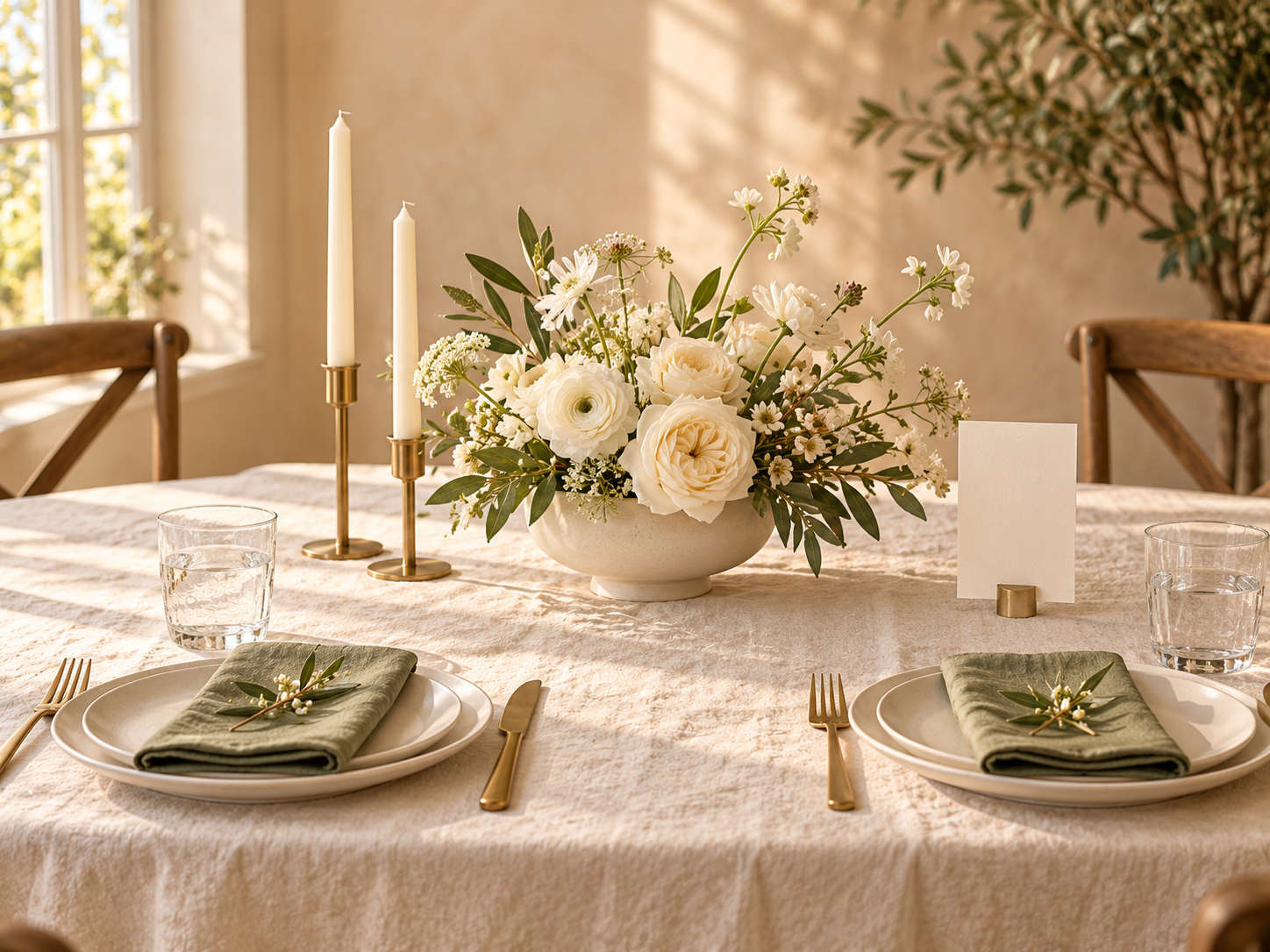
Instead of “Add candles,” try: “Put two brass candleholders beside the vase. Find them in Decor Box B. Leave the candles unlit until the venue lead gives the go-ahead.” A little specificity saves the next conversation.
- What? The object or action the helper should recognize.
- How many? The quantity for this one table, bag, or station.
- Where? A supply location that makes sense to someone new.
- Who? The person to ask when a decision is needed.
04Let one helper try it before everyone does
Save your guide and share its helper link with someone who has not seen the setup. Ask them to work through one example. Notice where they hesitate: a missing quantity or an unclear storage location is easier to fix now than during a busy arrival window.
The wedding centerpiece sample shows the idea: one table, five details, repeated across the room. A helper can use the online checklist without an account. Keep the private editing link to yourself; share the helper link with the people doing the work.
05Give the plan a place at the event
Put the guide link in the message your team already checks. For a station that needs a paper copy, download the PDF. It includes the numbered photo and instructions, so a helper does not have to balance a phone beside a stack of plates.
Add packing notes while you still remember which vase came from which box. Printed pages are a snapshot, so print again if the plan changes. Online checks on a shared guide are shared progress; use separate guides or paper copies when independent teams need their own checklists.
You do not need to document every possible detail. Start with the few things that would otherwise pull you away from enjoying the event. The Free plan gives you three active guides to try that handoff.
Quick answers
- Do helpers need an account?
- No. Helpers can open a shared helper link and follow its instructions without creating an account. Keep the editing link private.
- Can I print a Picture Parrot guide?
- Yes. Download a PDF with the numbered photo, steps, quantities, and packing notes. Reprint after changing the guide.